Table of Contents
Microsoft Office Advanced Features
Auto Replies / Out Of Office
Outlook has the function that enables it to send automatic replies to emails when you are out of the office, for an extended period of time. For example, if you are on annual leave from the 12th to the 16th, it can be handy to let people know with a message that you are unavailable and to expect a reply upon your return.
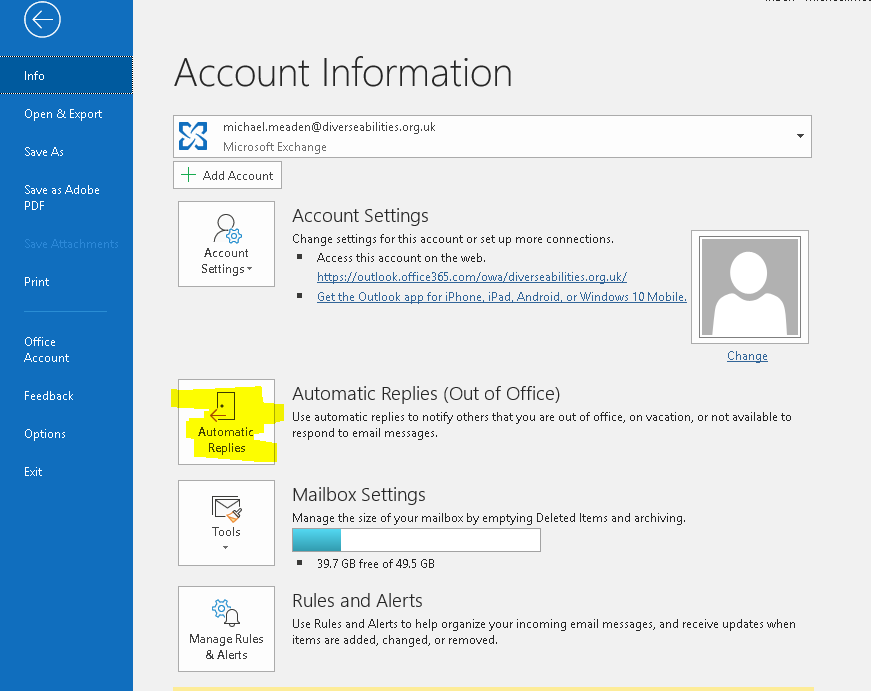
To Set your out of office, press *File* in the top left of outlook, and click “Automatic Replies”
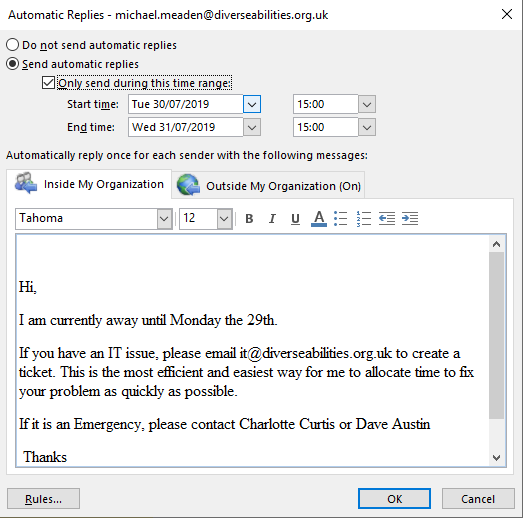
This will open the Automatic Replies window, where you are able to enable and fill in your automatic replies. Here you can enable & disable, set automatic trigger dates for when it starts and stops, and the content of the automatic reply similar to creating an email.
Sharing Your Calendar
If you'd like other people to be able to access your calendar, you can share access to your calendar with particular people by following the below steps:
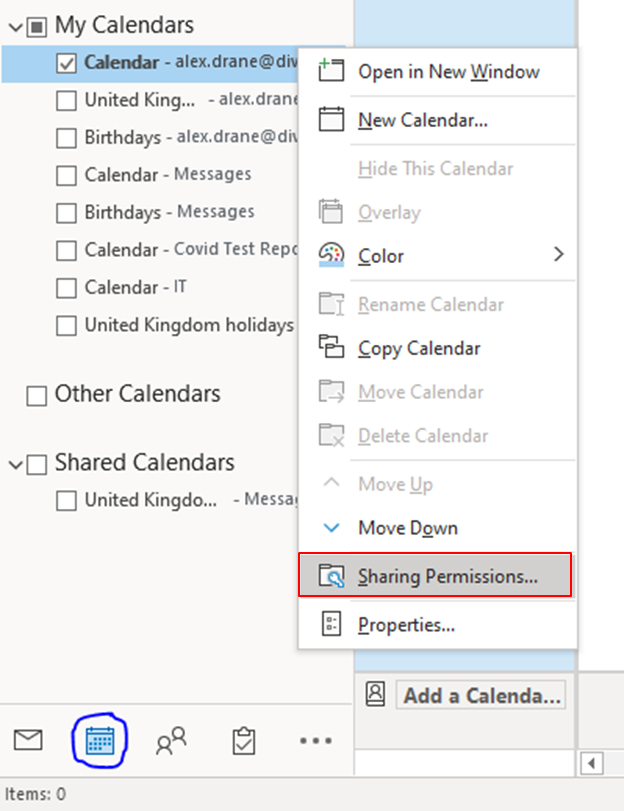
Go to the Calendar view in Outlook, open your calendar and right click “Calendar”. If you then click “Sharing Permissions…“.
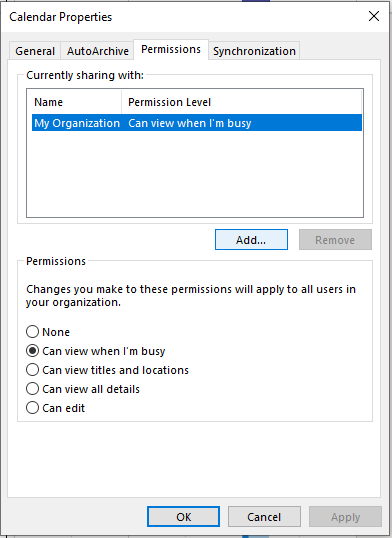
You will then be greeted by the below box
If you then click “Add…“ the address book then pops up, please see the box below.
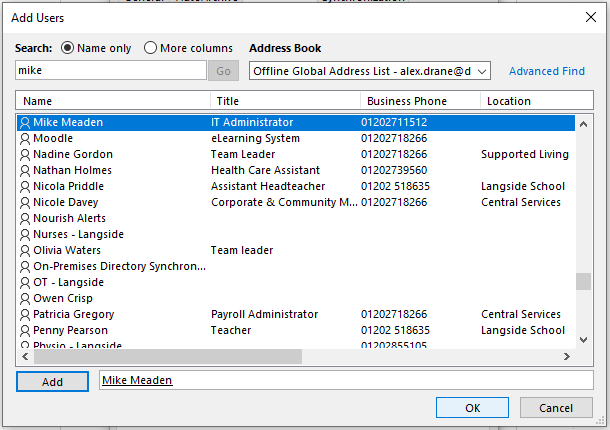
If you then search and left click the person that you would like to share the calendar to. If you then click “Add” in the bottom left and then click “Ok”, in the bottom right.
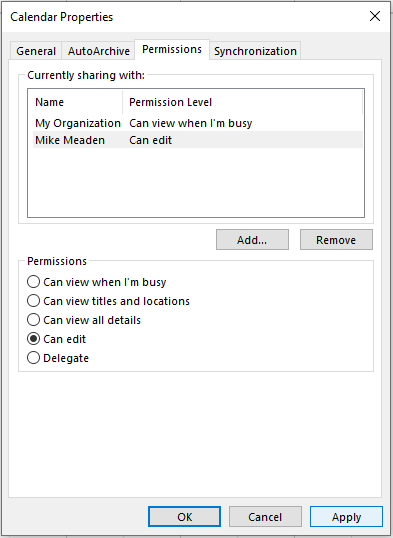
If you then click “Can edit” and then click “Apply”, followed by clicking “Ok” your calendar will now be shared with the desired staff member.
Please note you can only send invites to internal users.
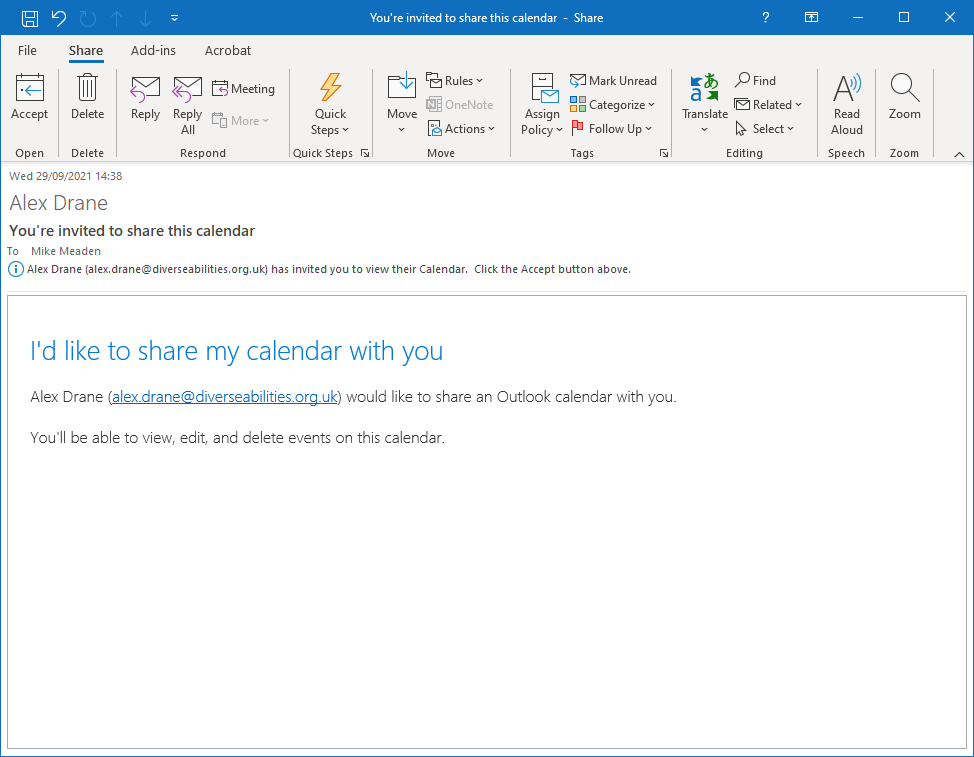
The person you shared the calendar to will then receive an email asking them if they would like to accept the calendar invite. If they click “Accept” the calendar will then be added to their Shared Calendar list.
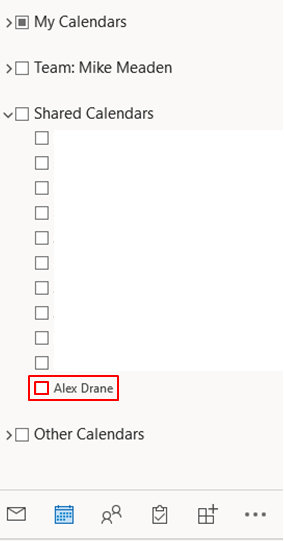
The newly shared calendar will then appear in the persons shared box. Ensure the box next to their name is ticked to say it is enabled
Shared Inboxes
If you have been granted access to shared departmental inboxes, these can be found on the left hand side of Outlook, on the mail view, highlighted yellow in the below screenshot.

These inboxes behave similarly to your main inbox, in that any emails that come into the address, such as info@diverseabilities.org.uk, are accessible by all those with access to the inbox. To open the inbox, be sure to click on Inbox and not on the email address itself, as this is not the inbox area and contains no emails.
By default, when you reply to an email in a shared inbox, the email will come from the shared address and not your personal email address by default. To change this, when you reply or forward an email, on the email window that appears, you will have an option above the “To:” field, similar to this screenshot.
If you do not have a To: field, please press Options > “From” highlighted in the screenshot.

You can click on your personal email address, or click “Other Email Address” and type in another email address that you have permission to send from. If you type an email that you do not have permission to send from, then the email will bounce back.
Public Calendars
Public Calendars are used for a variety of purposes, such as booking meeting rooms, or checking the training schedule. These are located in Outlook, in the “Folder” view and *not* in the calendar view.
- Locate the “Folder” view in the bottom left area of Outlook
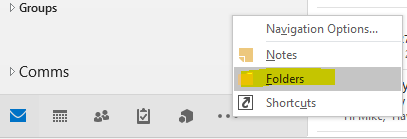
- The left Pane area of Outlook will now display all of the folders on your account, and any inboxes you have access to. It will also show “Public Folders - YourEmailAddress@diverseabilities.org.uk”
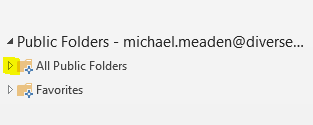
- Click the small arrows, to expand the folders, from here you will see the available Calendars
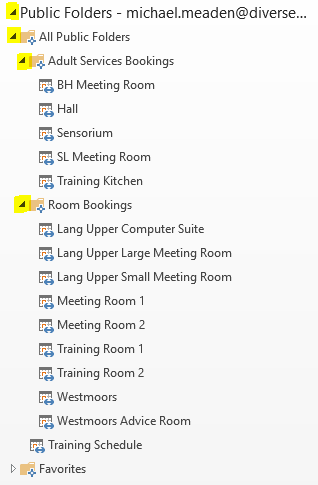
- Adult Services Folder is for bookings of the meeting rooms at The Beehive in Manor Avenue
- Room Bookings Folder is for bookings of the meeting rooms at Langside School and Westmoors
Inbox Rules