Table of Contents
Introduction to Microsoft Word Tabs & Tools
In the previous Wiki we Introduced Microsoft Word and went over the basics. In this Wiki I will give you an Introduction to the other Tabs & Tools that are available. Clicking the picture will open it up in full screen, you will then need to click the back arrow to go back to the Wiki after.
 When you first open Microsoft Word you are greeted by your document and the Ribbon at the top of the window. Inside of the Ribbon is 11 tabs, which are pictured above. Each tab has its own set of tools which can be used to edit and manage the word document.
File
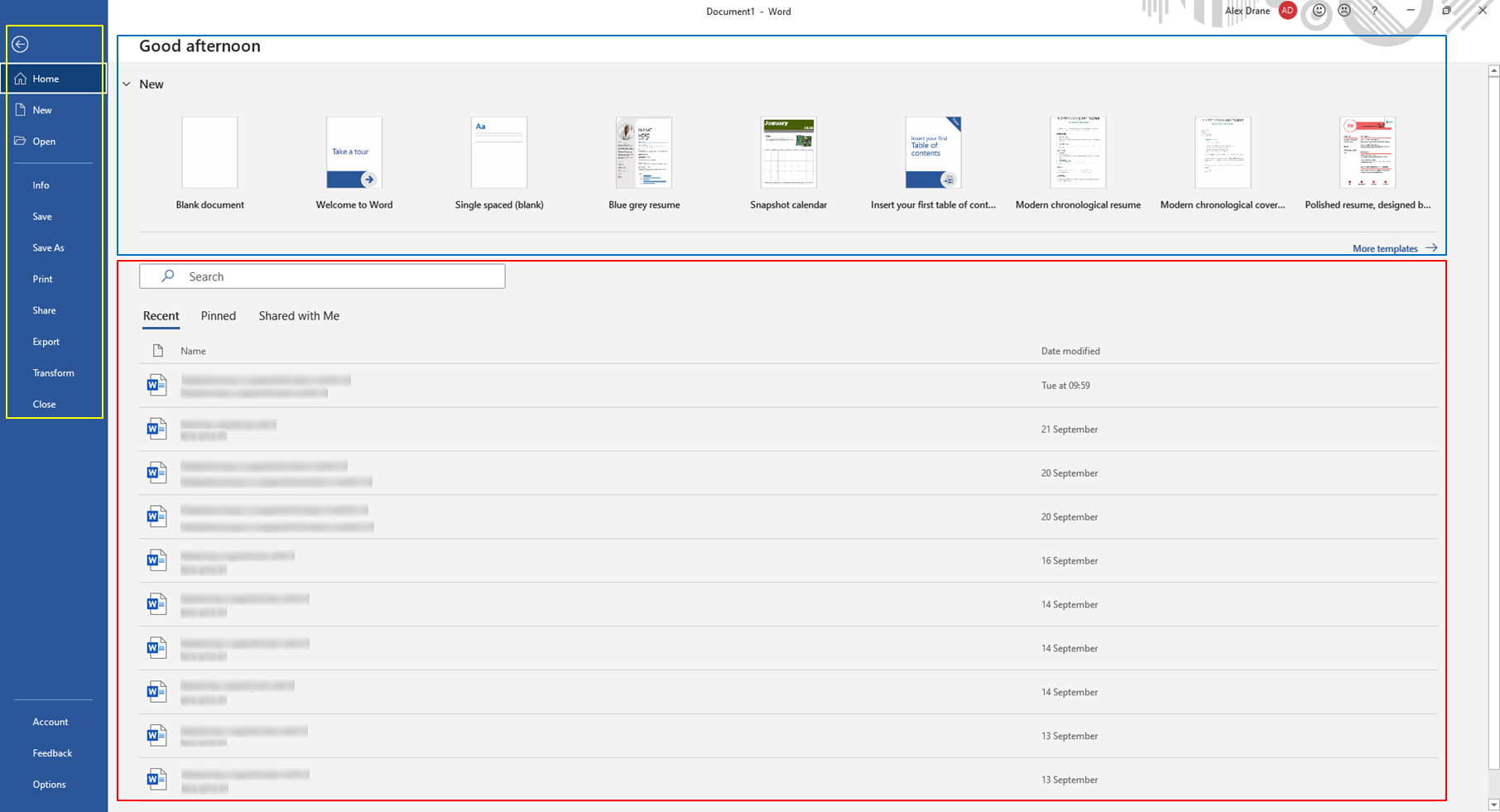 The 'File' tab is used to manage your word document and other word documents. You can save, open, print, share and export your document. You're also given the option to open previous documents and create a new document using one of the templates.
Yellow Box - This is where we can Save, Print, Share and Export documents. We sometimes export documents to pdf's
Blue Box - This is where you can choose a template and then create an additional document. When chosing a template it will ask if you want to create it and will then open another word document window.
Red Box - This is where you can open one of your previously accessed documents. You can also search for one in the search box. You're also able to pin documents and they will come under 'Pinned'. Documents that have been shared by another user appear under 'Share with Me'
Home
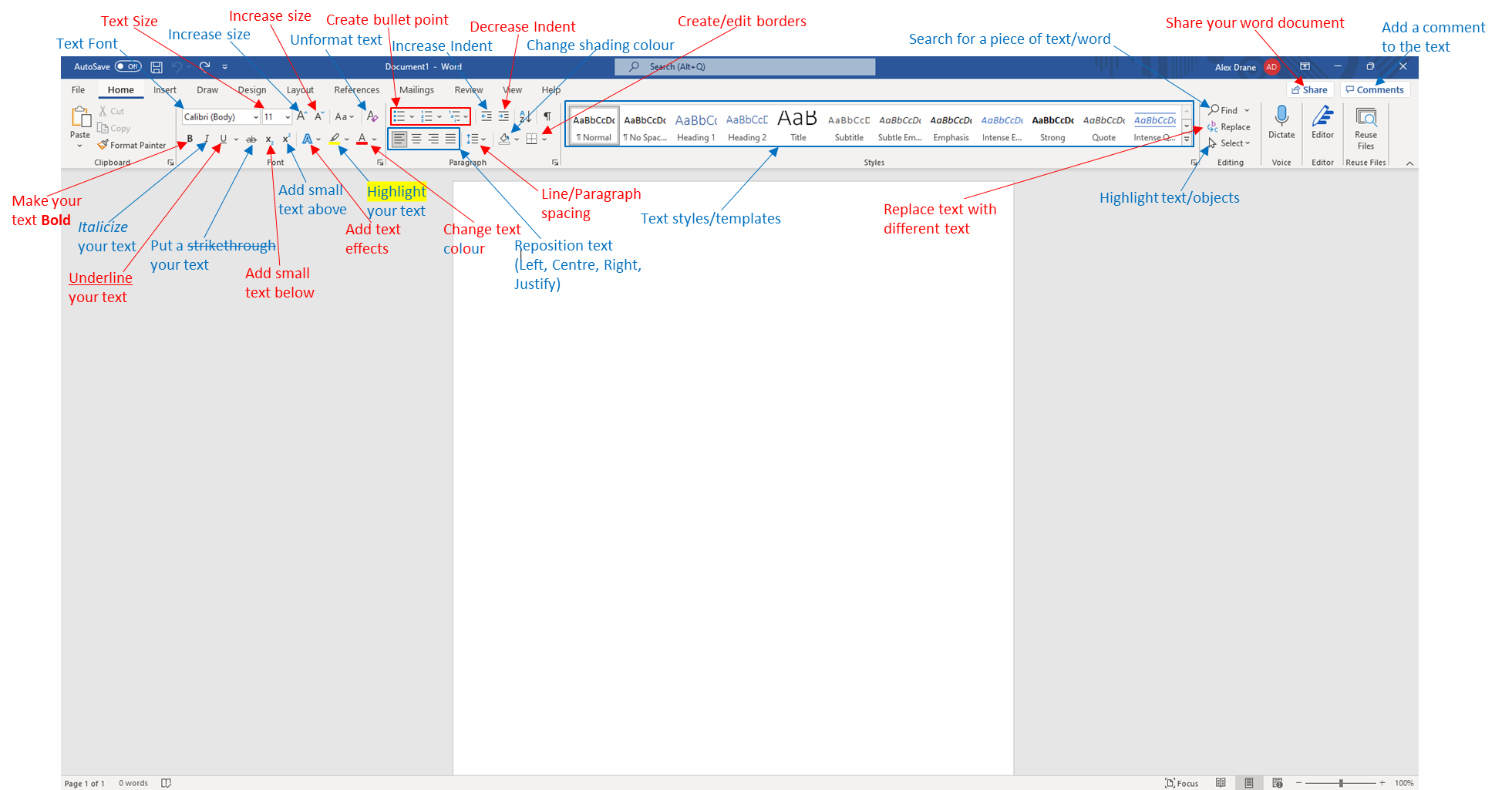 Inside of Microsoft Word if you hover the mouse over the tool it will say its name and information about it
Insert
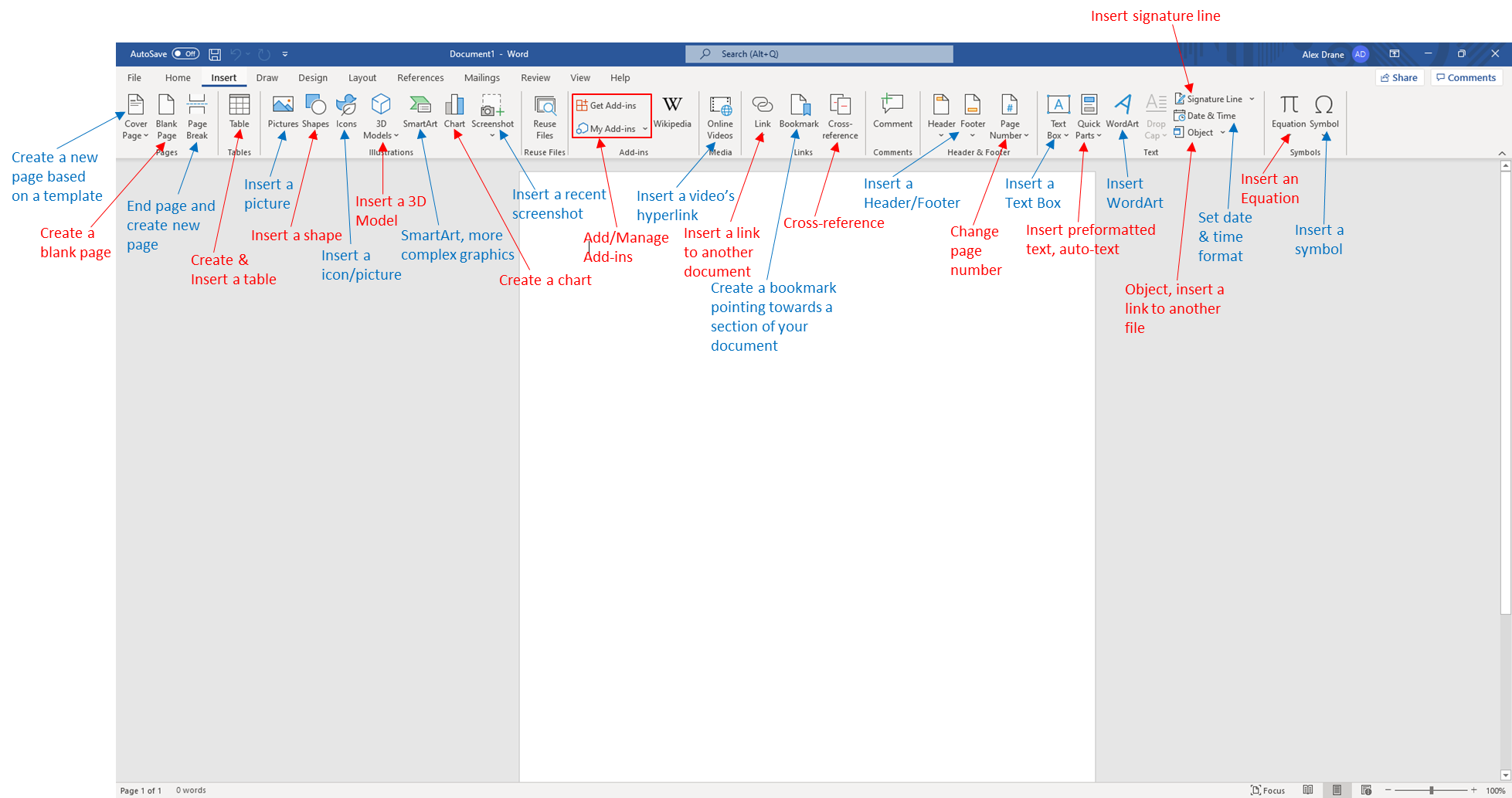
Draw
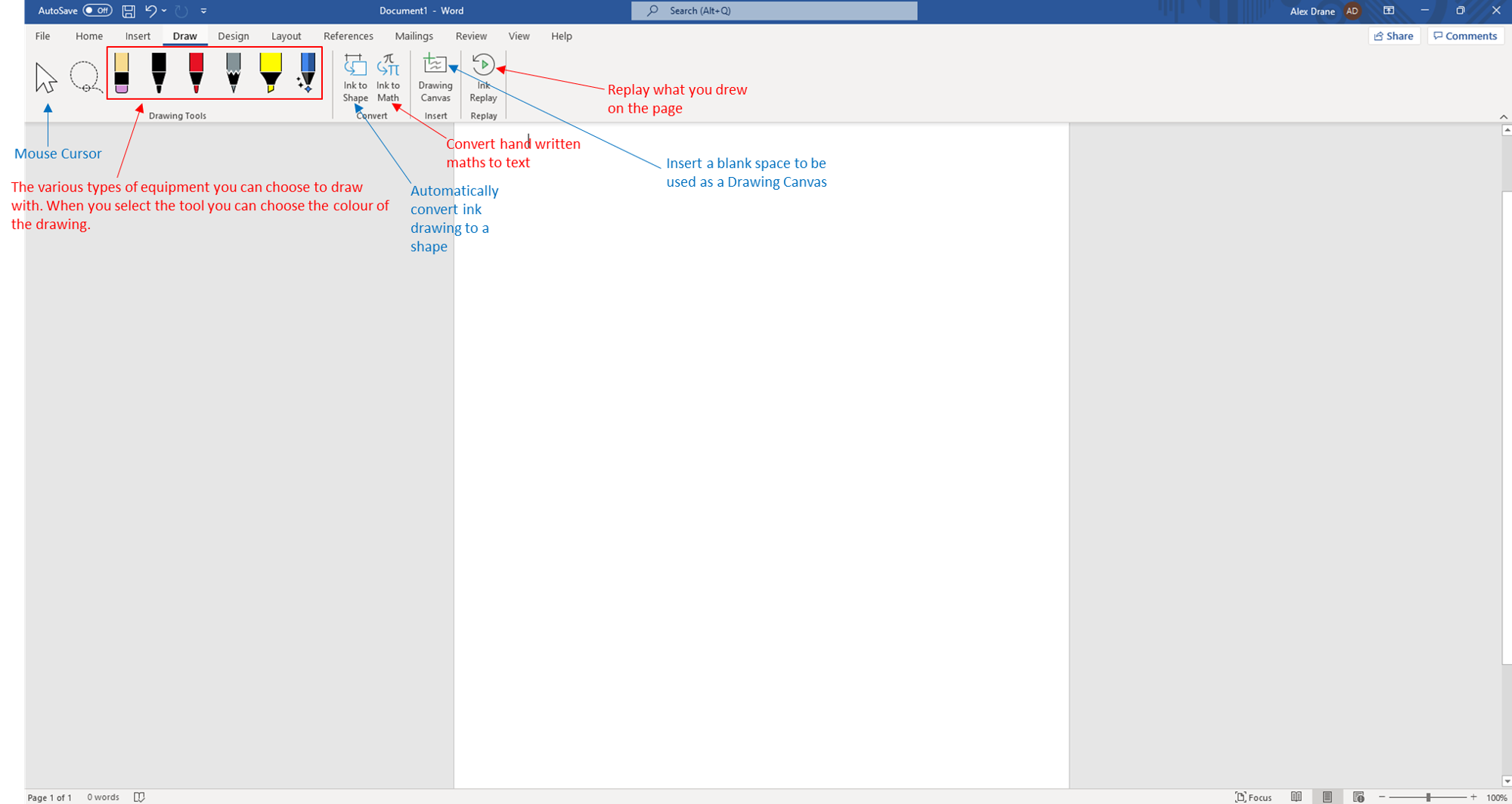 In the drawing tab you can adding drawings to your word document. An example of where this can be used is annotating a picture.
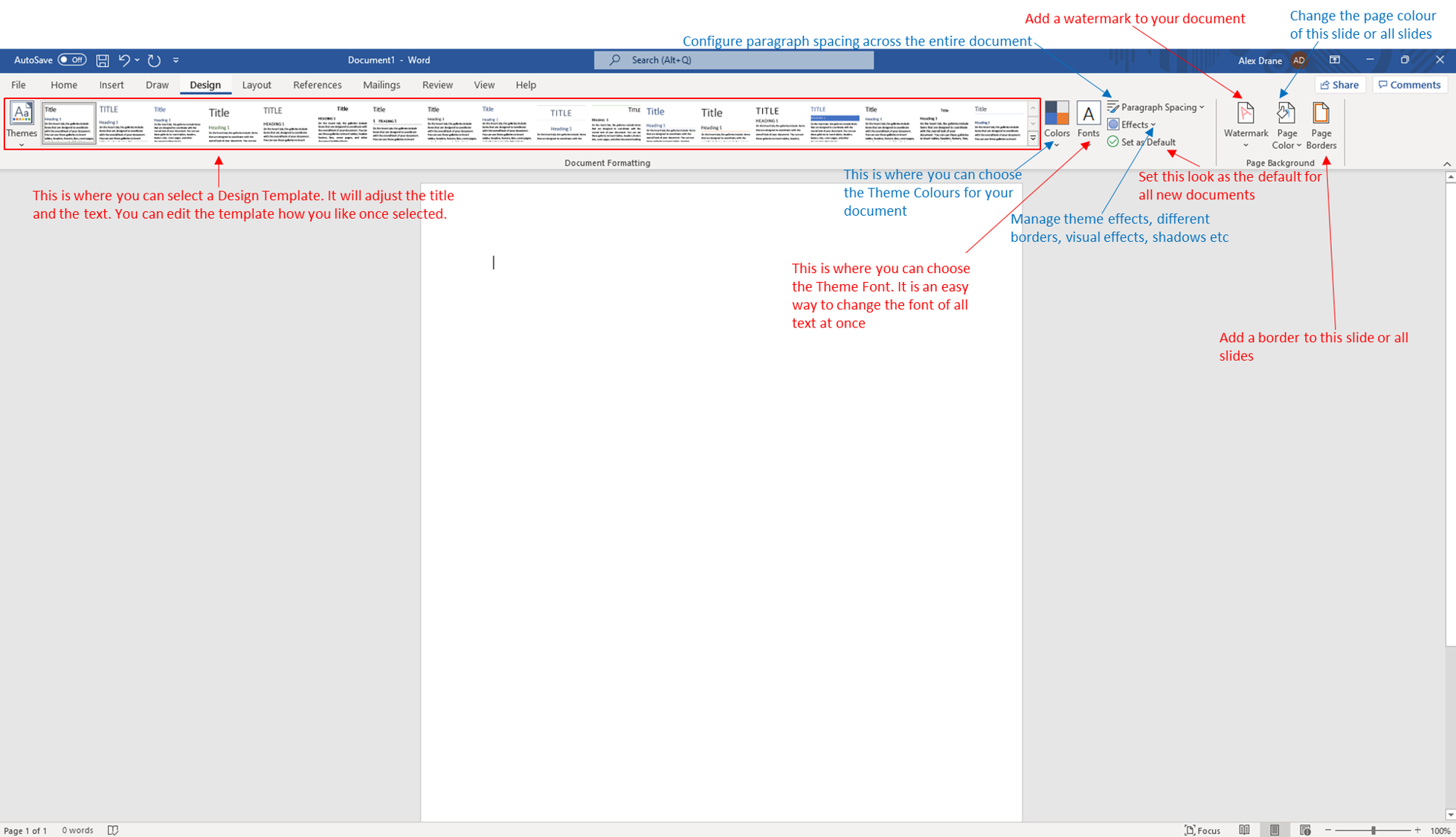
Design
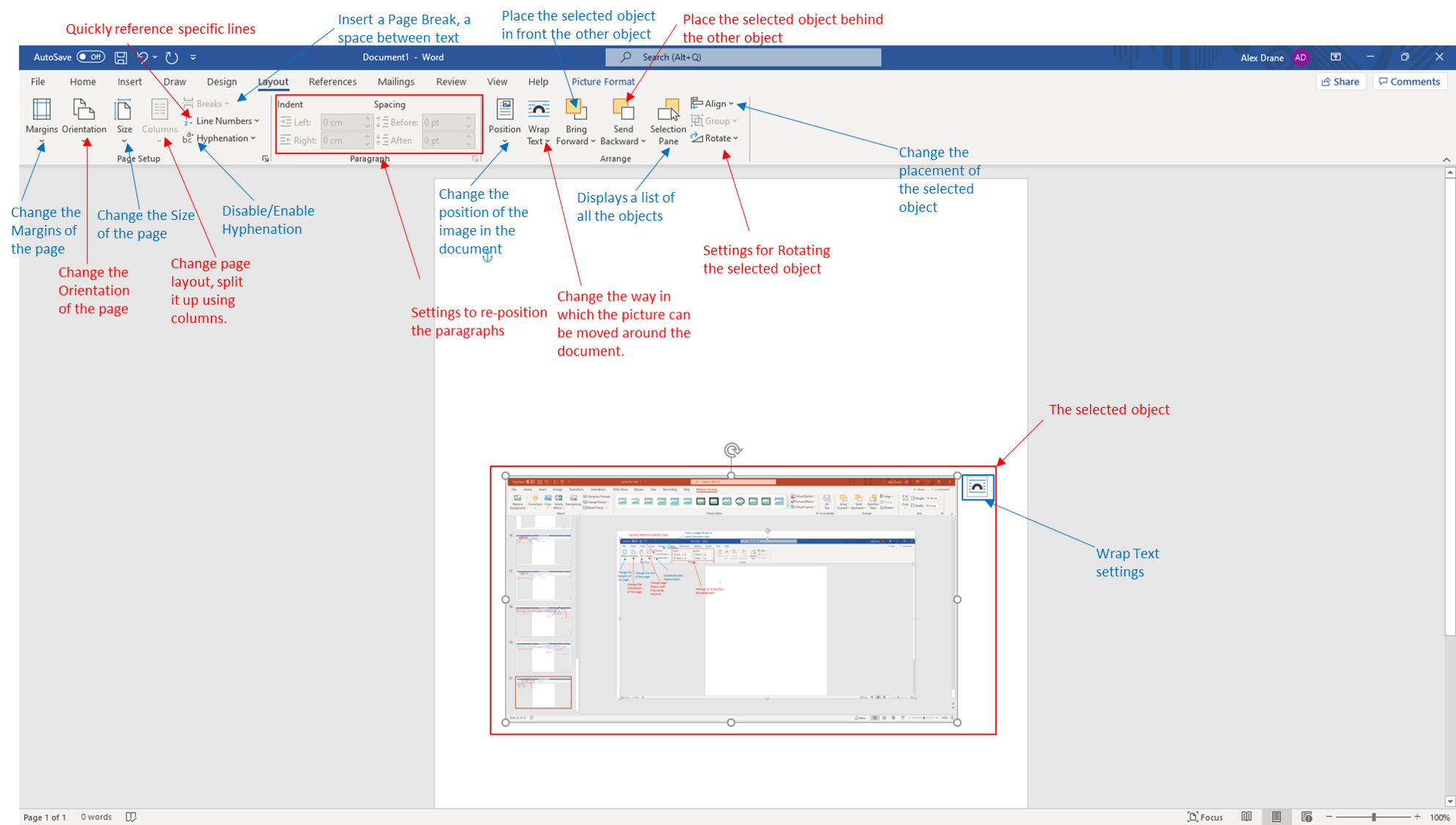
Layout
References