
User Tools
Table of Contents
Setting up your Email inbox
Unless otherwise organised, you will have an email account on our system, enabling you to send & receive emails to and from people inside and outside of the company. The first time you log on, you will be required to set up Microsoft Outlook, as this is the way we access our emails. This will have to be repeated the first time you log onto any computer.
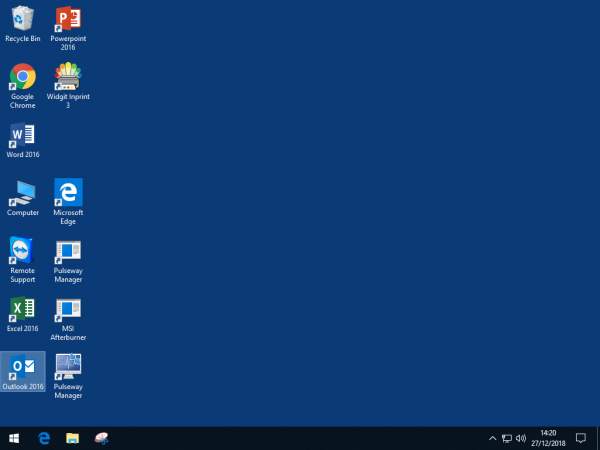
Step 1: Open Outlook
Once you have logged onto your computer, find Microsoft Outlook, by either clicking on the shortcut on the desktop, or by pressing on the start menu, and typing “Outlook”
Step 2: Follow the steps in the setup wizard
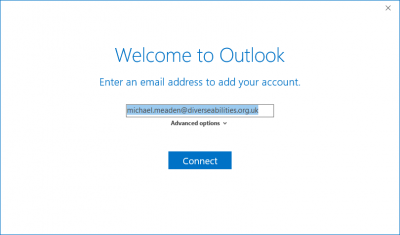
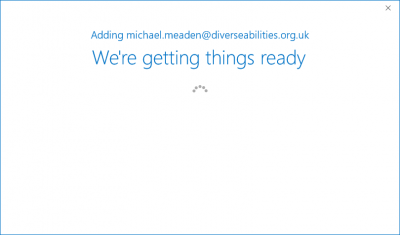
At this point, outlook will ask you for your email address, this should be prefilled, but if not, the format used is firstname.surname@diverseabilities.org.uk or firstname.surname@langsideschool.org.uk
Step 3: Enter your password
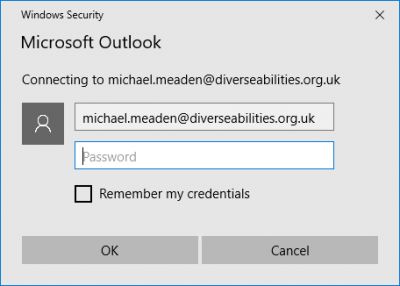
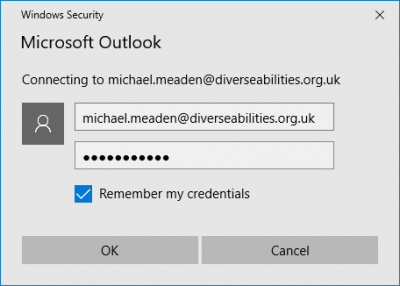
This is the password that you use to log onto the computer, ensure to tick “Remember my password” so that it doesn't ask this each time you open Outlook. You will still need to provide your password to log onto the computer though.
Step 4: Close the setup wizard
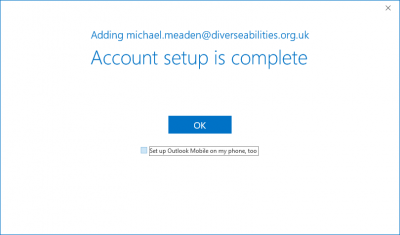
Once outlook is finished, you can close this final window. Untick “Setup Outlook on my mobile too” as this will be done by the IT Department on work issued phones. Personal phones are not allowed to have access to work email accounts. If you do not untick this, a web browser window will open, you can simply close this.
Step 5: Ensure that Outlook opens correctly
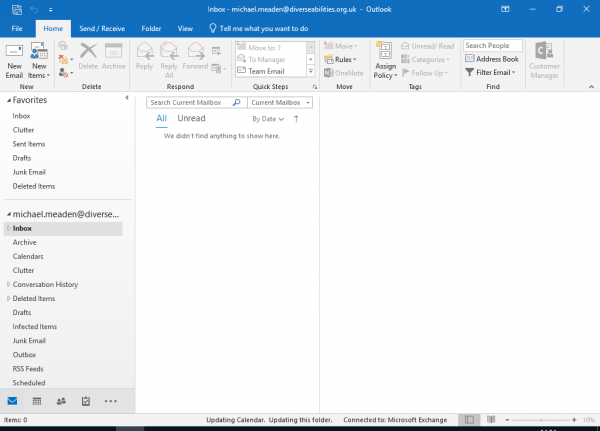
Outlook should now open, and present itself to you in a similar way to the below picture. Do not worry if it is blank and you weren't expecting it to be, as downloading emails can take a variable amount of time, depending on how large your inbox is.
If you have access to shared inboxes, or other more advanced Outlook features, please take a look at the Outlook introduction pages in the Microsoft Office section of this wiki.


