
User Tools
jitsi_video_meetings
Table of Contents
Jitsi Video Meetings Website
Jitsi is a web-based video conferencing system, similar to Skype, Zoom, and other online meeting services, but is available to all our users without any costs or restrictions.
To use this software, you need a webcam, microphone, and speakers/headphones. Please email IT if you require any equipment. Please use this in Google Chrome for best results.
To create a meeting
- Go to https://jitsi.diversecr.co.uk/
If you are working remotely, open a new tab outside of the remote working system
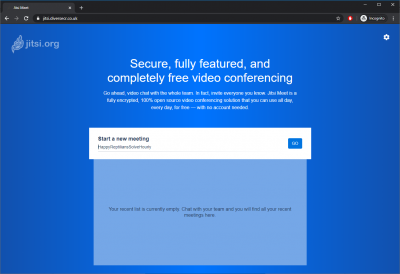
- Type in a meeting name on website, make it easily identifiable
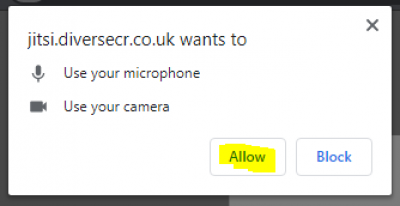
- On opening the meeting, you will get a bubble asking permission to use your webcam and microphone, please click allow
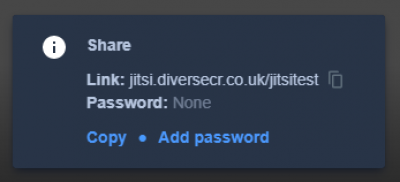
- In the bottom right there is an option to add a password to the room, the ‘i’ icon, only share the password with those you want to join the meeting
- This box will also provide a link that you can share with those you want to join, click ‘copy’ and paste it into an email.
For example, if I made a room named ‘ITTeam’ the link would appear as https://jitsi.diversecr.co.uk/ITTeam and I would share this with participants along with the password
To join a meeting
- Click on the link to the meeting room.
- On opening the meeting, you will get a bubble asking permission to use your webcam and microphone, please click allow
- You have now joined the meeting and can chat to everyone involved
Using Mobile Devices such as iPhones, Android phones, Tablets
- You must download the ‘Jitsi Meets’ app from your relevant app store
- Once installed, open the app and press the three horizontal bars in the top left
- Select ‘Settings’ and enter the below:
- Once completed, go back to the main menu and enter the room name you were given, exactly as it appears in the link
- Once this is done, go back to the main menu, and then enter the room name you were given, this must be exactly as the person who set up the meeting typed in.
For example, I would type in ITTeam to join the room above

jitsi_video_meetings.txt · Last modified: 2022/01/04 10:17 by Michael Meaden


